

Common measures for communication timeouts?
Communication Failed
For Serial Port
1. Wiring method
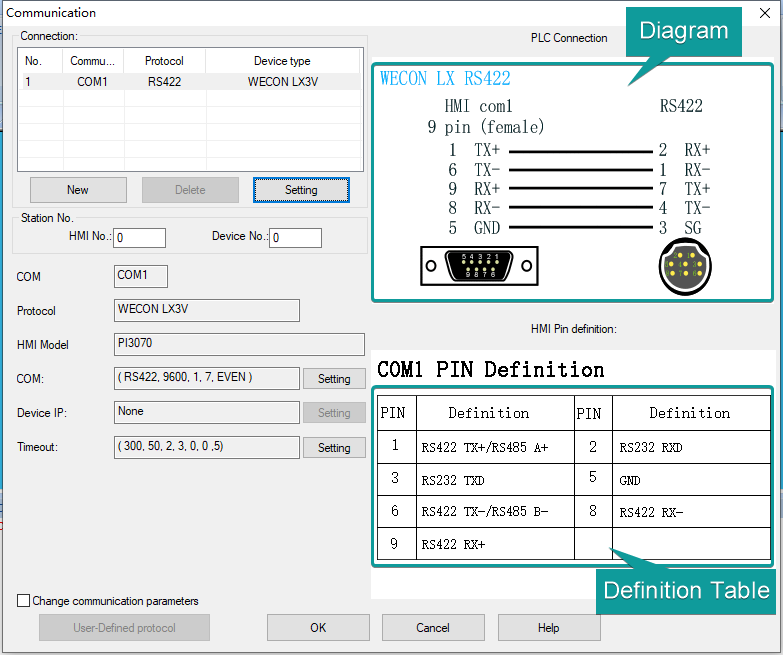
Please check the wiring diagram of corresponding device. There are most part of common PLC wiring diagrams indicate in PIStudio.
Also definition table of HMI is below on the diagram.
2. Communication cable
Please check the communication cable or replace another one. Using the multi-meter to measure the conduction of cable, if it is possible.
3. Protocol settings
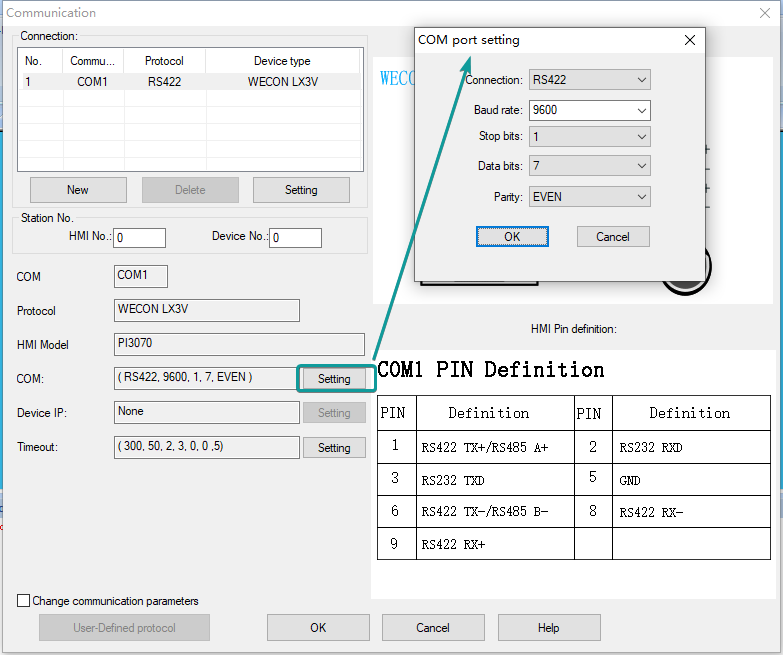
Please check the communication parameters whether are consistent at both side (device and HMI).
Make sure whether using the correct protocol.
Connection method, baud rate, stop bits, data bits and parity.
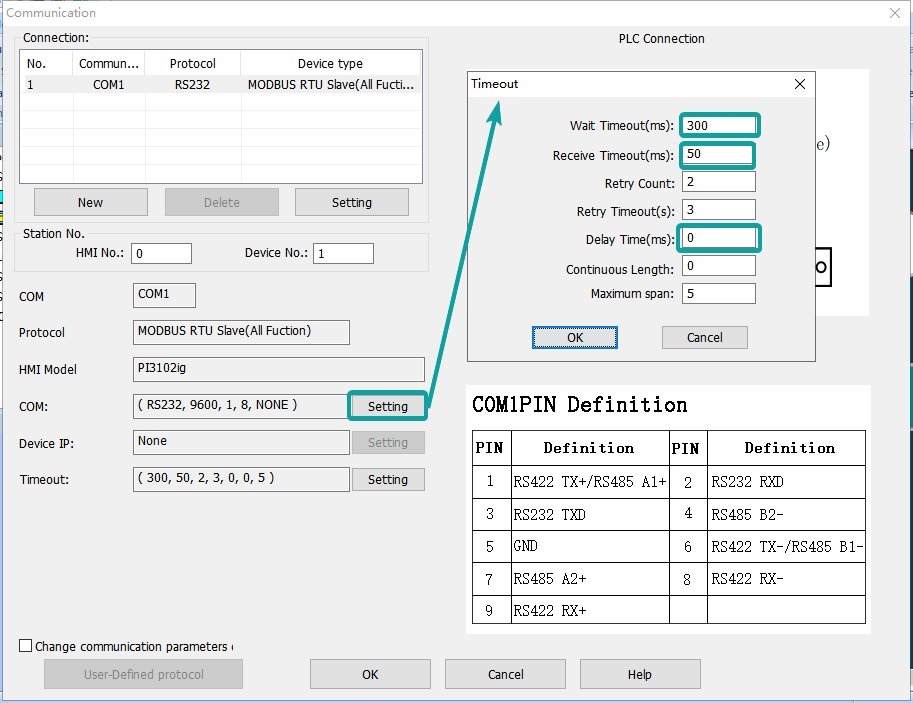
See whether the longer timeout delay can be helpful or not.
4.Communication port
Please check the physical interface whether is fault or not. Change another port or another HMI to check whether is the problem come from damaged interface. (Same for device side)
For Ethernet Port
1. Communication cable
Please check the communication cable whether broken or replace another one. Using the multi-meter to measure the conduction of cable, if it is possible.
2. IP settings
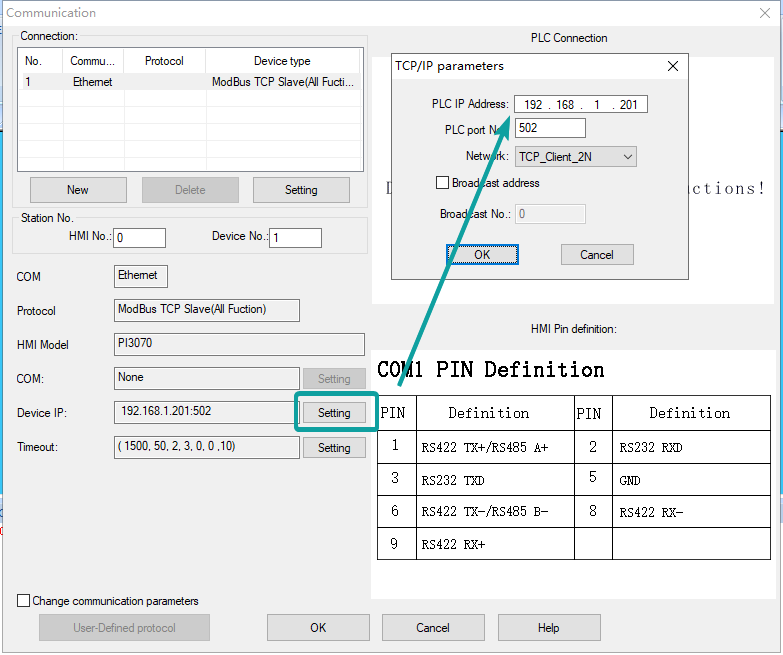
Please check the device's IP whether are corresponding to opposite side.
3. Network status
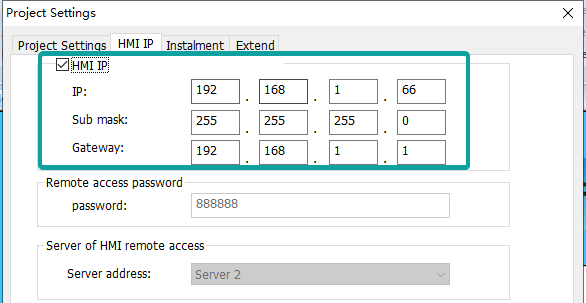
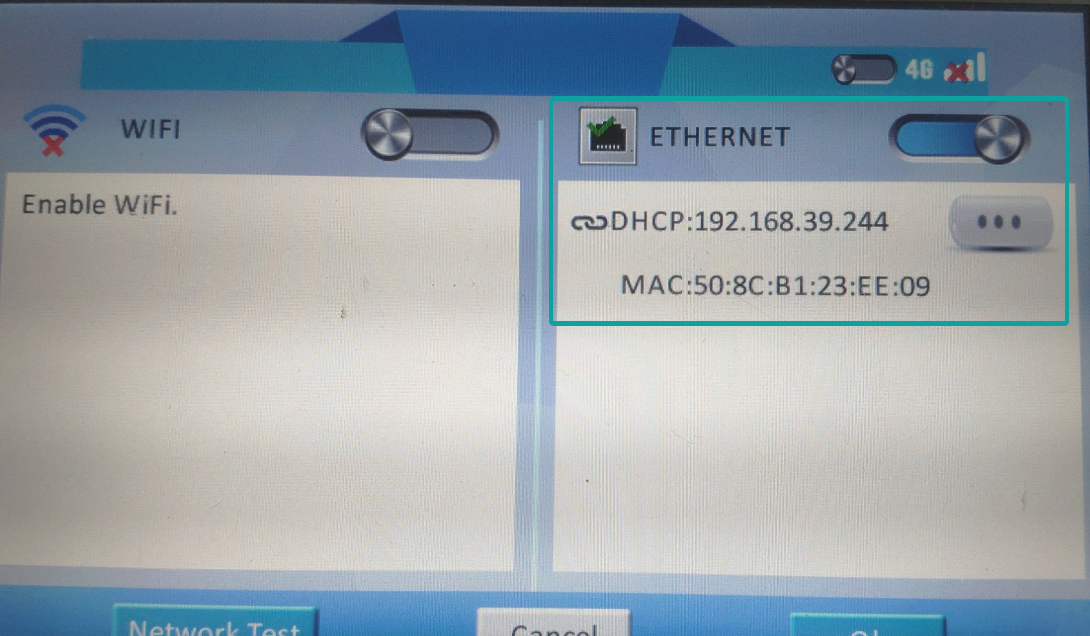
Please check the IP address in HMI, you can set in Project Settings, or directly access the backstage interface to check IP.
If it is a check icon in Ethernet, means HMI network status is OK.
4. Ping command
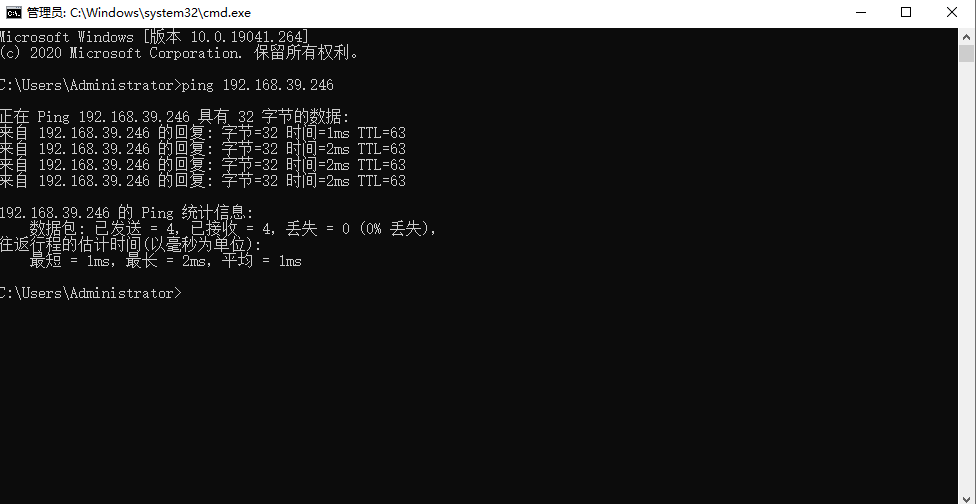
Please using the command window to ping the IP, see whether it can ping through for both HMI and device(Make sure they are in same LAN network first).
Communication Unstable
1. Communication environment/surrounding
Please comfirm whether there is any interference at site, for example something like big machine or inverter nearby. Or change the test environment to office. See whether happen the same.
2. Power supply
Please check the cable of power supply whether make interference to communication. Use the independent power source to supply the electricity to HMI and PLC alonely. Do not layout the communication cable with power supply parallelly.
3. Enhance anti-interference
1) Ground the communication cable or change the twisted pair shielded wire;
2) Ground the HMI shell, if your HMI is metal case, then this step is needed(For example PI9150 or PI8150ig);
3) Ground the cabinet;
4) If conditions permit, please install a filter needful;
Communication Lag
1. Communication environment
The first step is same with unstable communication. Need to confirm whether there is some interference.
2. Project content
Please create a new project to see whether it would happen the same.
2.1 Script
Please check whether using the script in project. Especially the timing script would drag the communication speed. Delete them first, and test again.
2.2 Image/Picture
-If the background picture or graphic of object is complicated bitmap, for example using the gradient, it may take up the HMI memory, let screen turn slowly. Please try to discard this kind of picture and then test again. See whether it would be better or not.
-If still not solved the problem, please delete the object one by one, check whether able to locate where is the problem exactly after reduce the object numbers from screen.
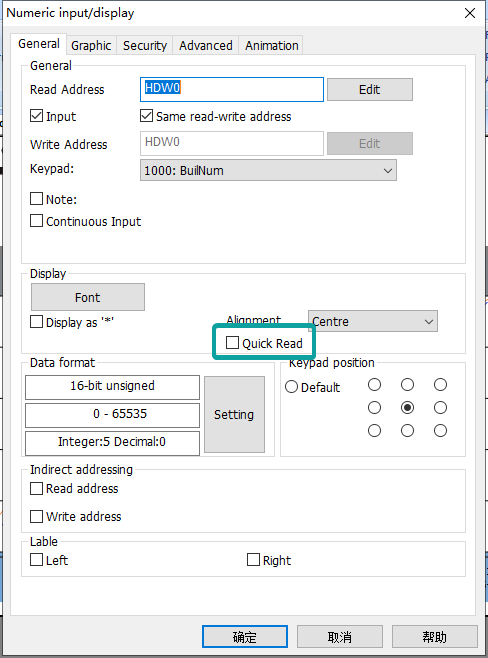
2.3 Quick Read
-Please try to check the box of Quick read, see whether the response would be better.
-If there are Quick reads already exist in project, please try to uncheck them. Because it would affect the priority of communication.
3. Check the HMI cache
Please check whether the lag phenomenon happen after the HMI running for a while or not.
Change the another HMI to test again.
4. Check the software version
Please check your PIStudio version whether is the latest one.