1.6 Email
Email notification.
When the box has an alarm generated and needs to be pushed using email, the relevant configuration needs to be done on this side.
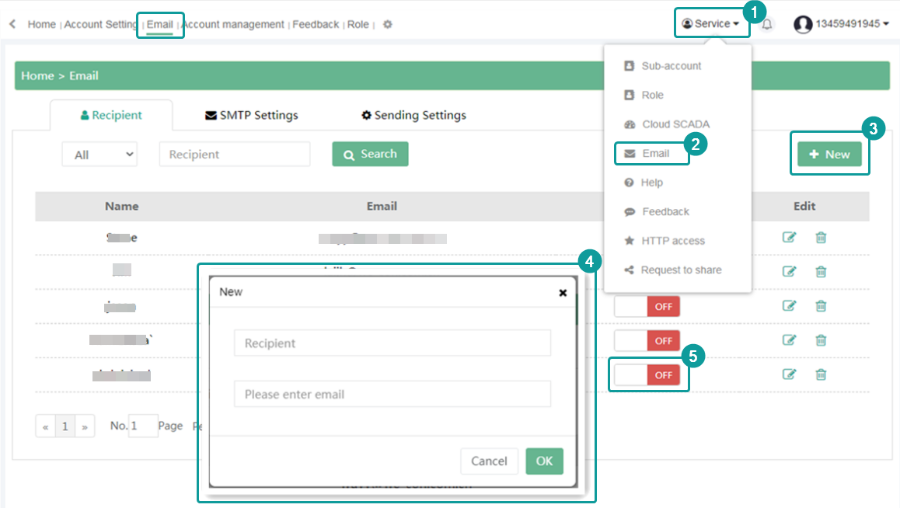
Add recipient. Set the email push information in Service--Email.
Add the recipient name, email address, and enable the email permission. Shown as below.
SMTP Settings
Fill in the SMTP setting as the sender's information, check the SMTP setting and enter the email address to be verified, and a checking email will be sent to the email to remind the SMTP setting to succeed.
- Sender: The name is arbitrary without requirements.
- Email address: Fill in the sender's email address.
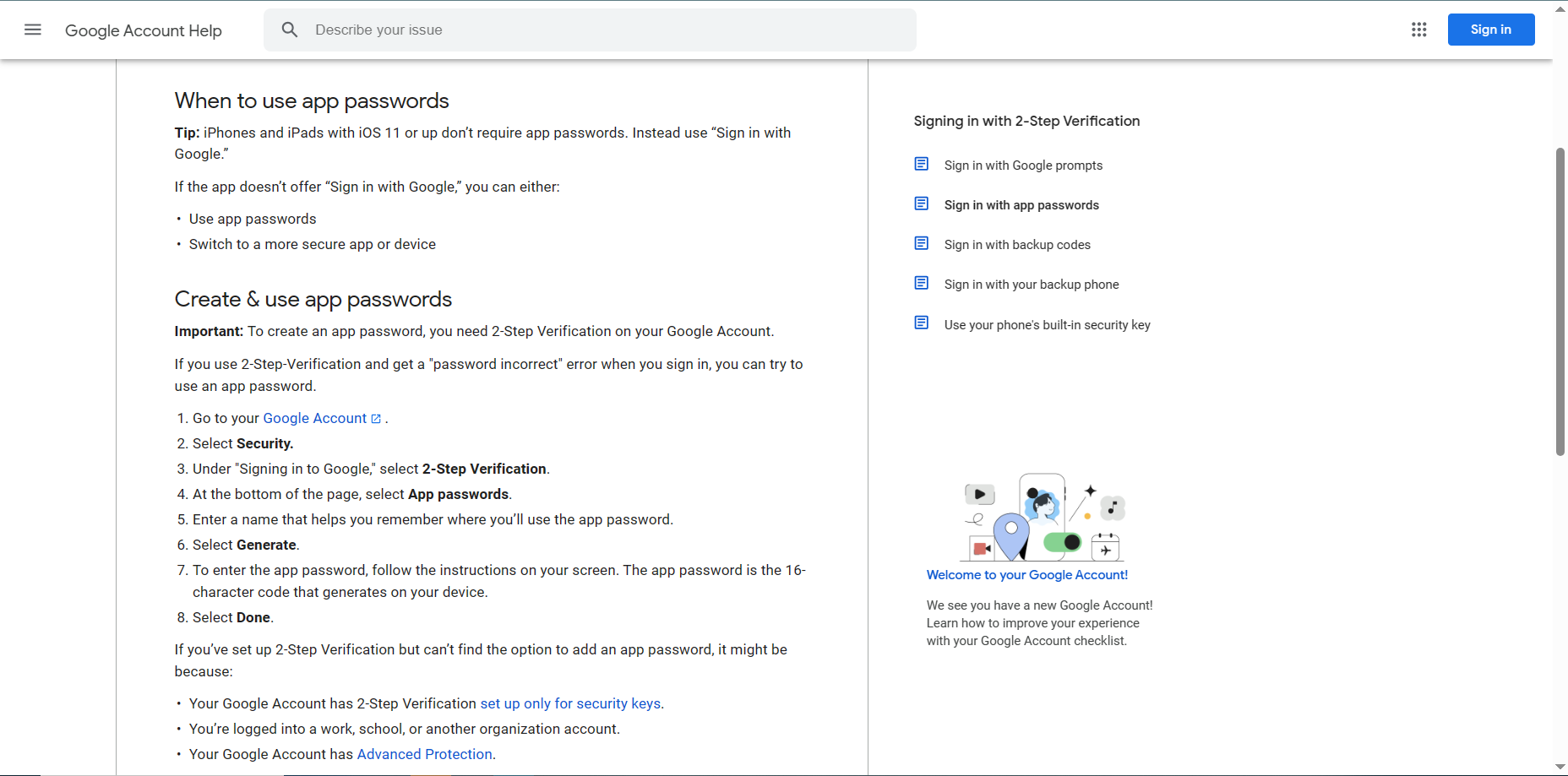
- Password: Fill in the password of the sender's email.
- SMTP: Fill in smtp.qq.com.
- Port: If the secret key selects "No", fill in 25. If the secret key selects "SSL", fill in 465 or 587.
The setting procedure is as the following figure.
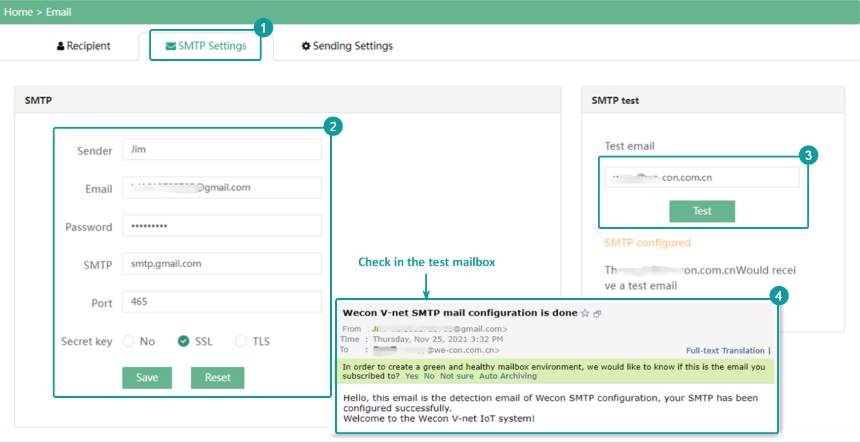
Sender settings.
Here we recommend Gmail. The setting procedure is as the following figures.
Sending settings.
- Add: add a new configuration, and multiple configurations can be added.
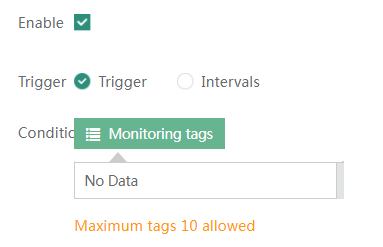
- Enable: Check to enable to use the e-mail push function, and fill in the configuration.
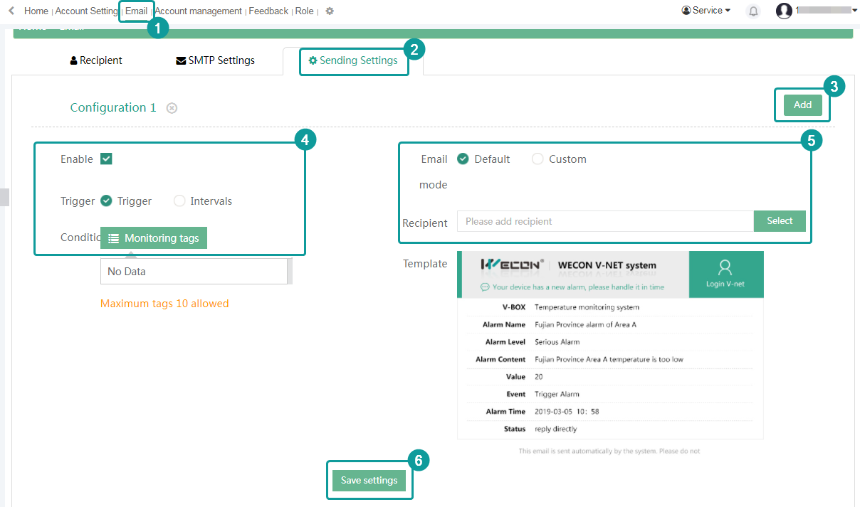
Trigger: There are two ways to send emails, including "Triggers" and "Intervals".
- Trigger. It needs to bind an alarm tag. When the alarm tag reaches the alarm condition, it will send an email.
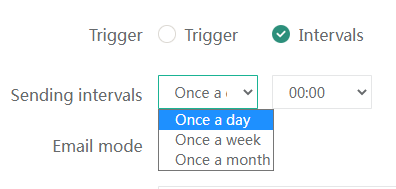
- Intervals. Users can select "Once a day", "Once a week" and "Once a month".and the time.
Mode: There are modes.
- Default. Default is the WECON template.
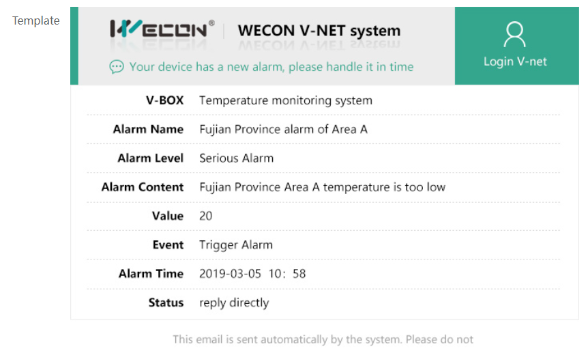
- Custom: Users can add a bit monitoring point or word monitoring point according to their needs. When users choose to send emails at regular intervals, there is only Custom mode.
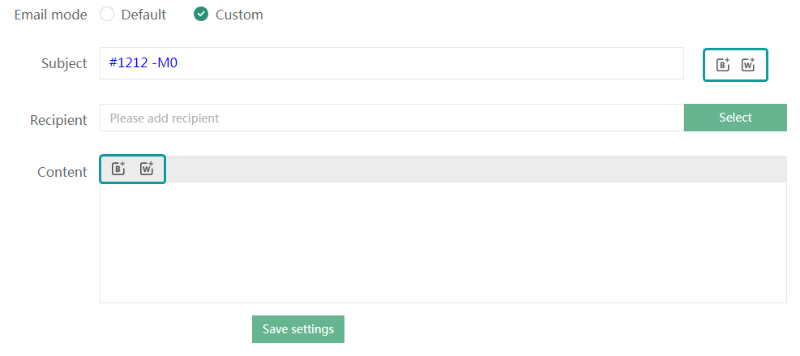
Status push(Email)
- [Recipient] in VNet first set up the recipient
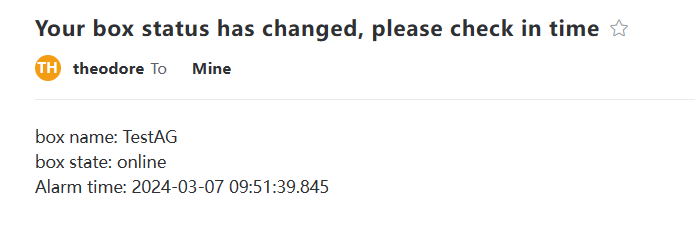
- Status push is to push the data set by the v-box to the mailbox. Shown as below.
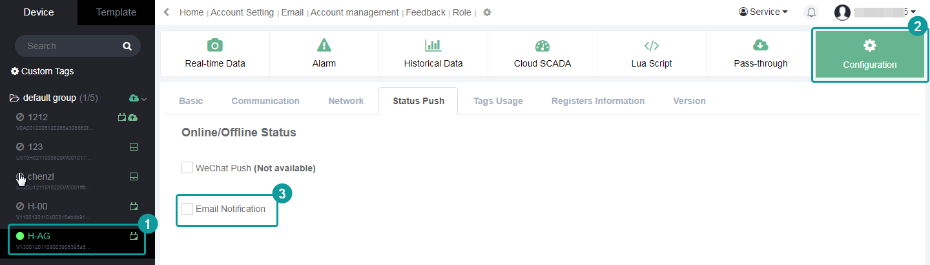
When the setup is complete, you will be notified by email whenever the device goes online/offline.
VBOX online
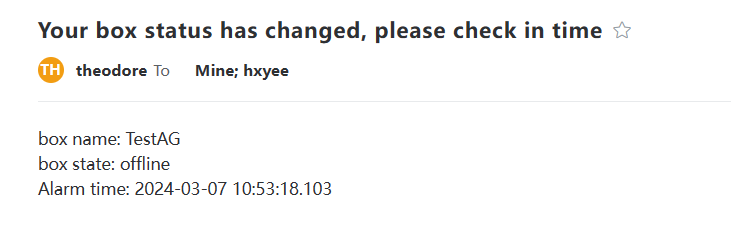
VBOX offline