

INVT
INVT IVC1
Support Series: INVT IVC1 Series
HMI Settings
| Item | Settings | Optional | Note |
|---|---|---|---|
| Protocol | INVT IVC1 | ||
| Connection | RS232 | RS485 | |
| Baud rate | 19200 | 57600, 38400, 19200, 9600, 4800, 2400 | |
| Data bit | 8 | 8,7 | |
| Parity | Even | Even,Odd,None | |
| Stop bit | 1 | 1,2 | |
| PLC station No. | 1 | 1 | Need to be same as PLC settings |
Address List
| Type | Device registers | Format | Range | Note |
|---|---|---|---|---|
| Bit | Y | YOOO | 0~177 | |
| X | XOOO | 0~177 | ||
| M | MDDDD | 0~2047 | ||
| SM | SMDDD | 0~255 | ||
| S | SDDDD | 0~1023 | ||
| T | TDDD | 0~255 | ||
| C | CDDD | 0~255 | ||
| Word | D | DDDDD | 0~7999 | |
| SD | SDDDD | 0~255 | ||
| Z | ZDD | 0~15 | ||
| T | TDDD | 0~255 | ||
| C | CDDD | 0~199 | ||
| Double Word | C | CDDD | 200~255 |
PLC Settings
Create new program, and select the PLC type as IVC1.
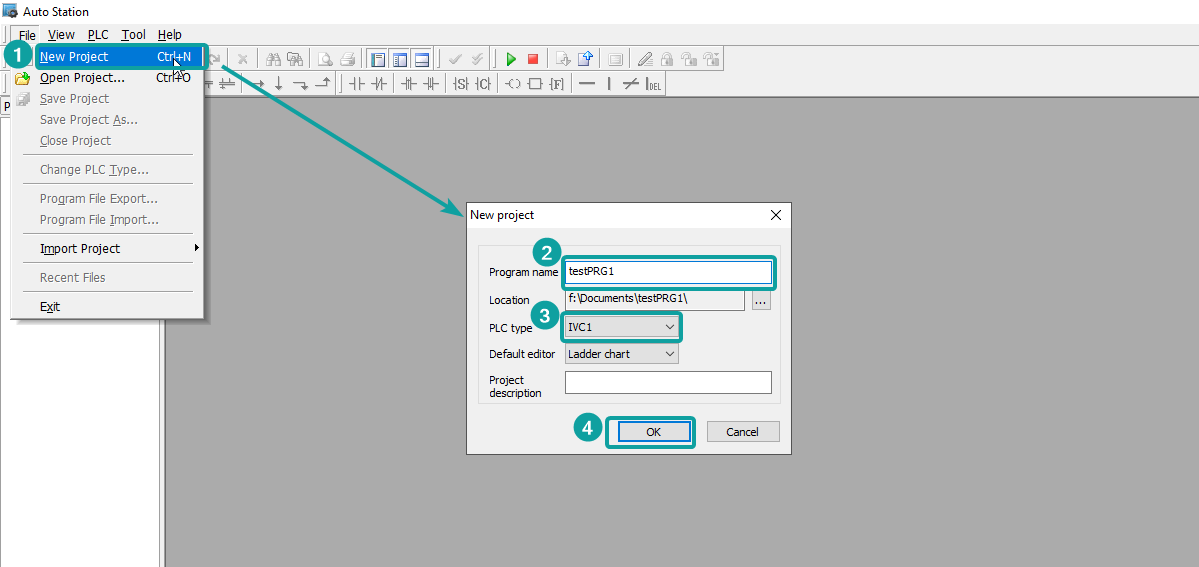
Double click the tree node of [System block], and then double click the [Serial Port] to open the PLC port settings setup window. Find the PORT0 setting to change.
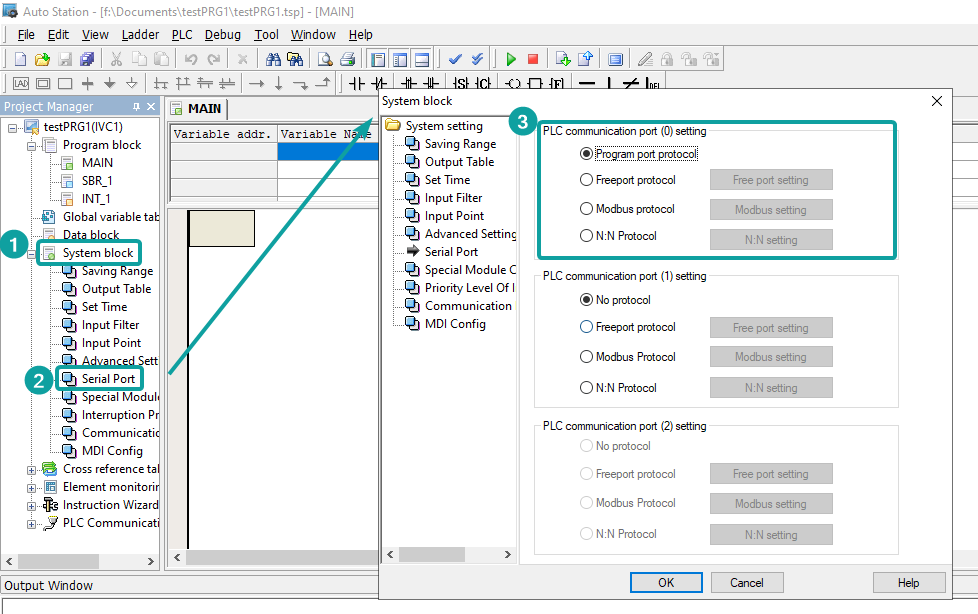
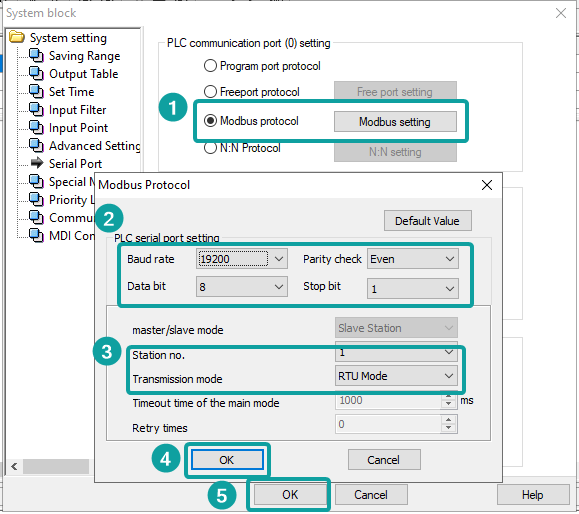
Change the PORT0 setting as Modbus protocol, and click OK to save the setting.
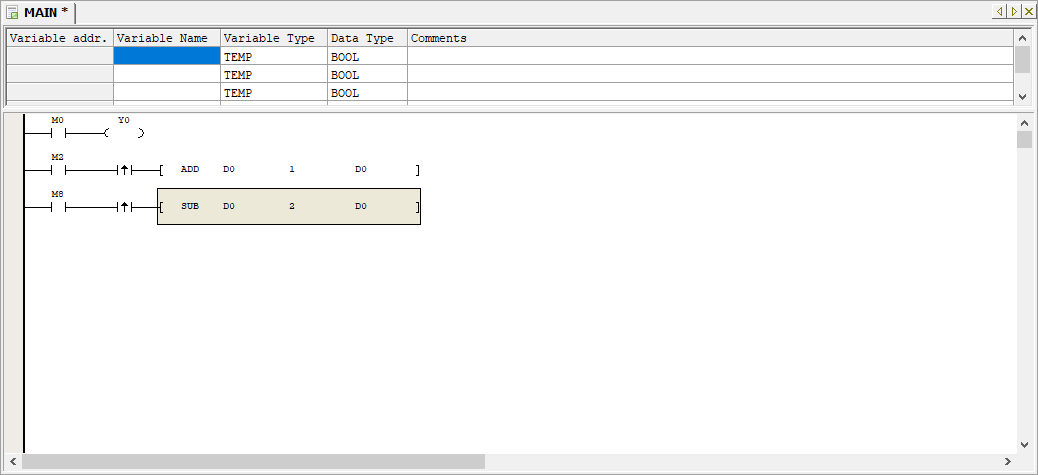
Program the PLC
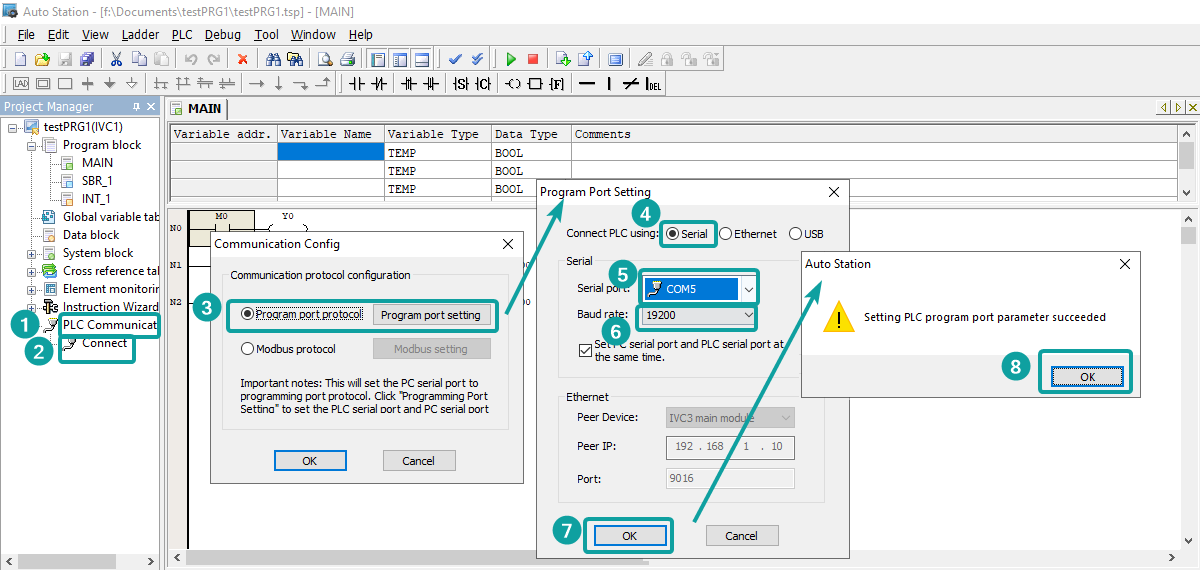
Connect the PLC with PC by RS232-USB converter cable. Setup the connection method from [PLC Communication]-[Connect]. If set up successfully, it would show like below.
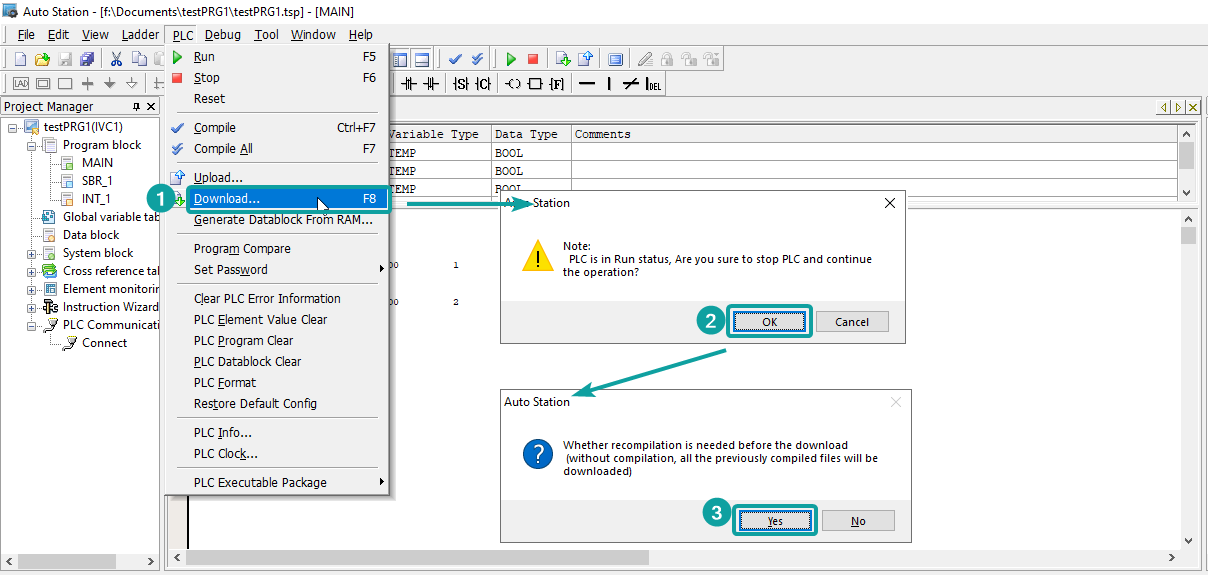
Click [PLC]-[Download] to download program into PLC. If not compile the program, when click download, it would ask for recompilation to process the next step.
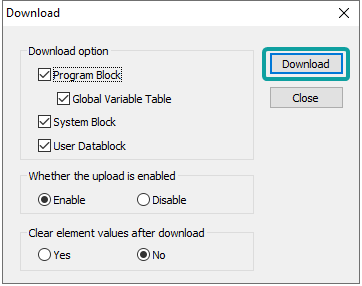
Click [Download] to finish the job.
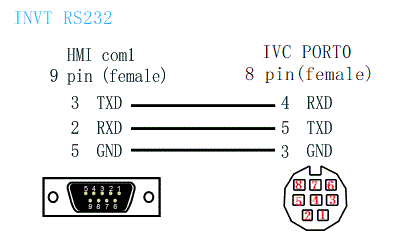
Cable Wiring
INVT IVCL2
Support Series: INVT IVCL2 Series
HMI Settings
| Item | Settings | Optional | Note |
|---|---|---|---|
| Protocol | INVT IVCL2 | ||
| Connection | RS232 | RS485 | |
| Baud rate | 19200 | 57600, 38400, 19200, 9600, 4800, 2400 | |
| Data bit | 8 | 8,7 | |
| Parity | Even | Even,Odd,None | |
| Stop bit | 1 | 1,2 | |
| PLC station No. | 1 | 1 | Need to be same as PLC settings |
Address List
| Type | Device registers | Format | Range | Note |
|---|---|---|---|---|
| Bit | Y | YOOO | 0~377 | |
| X | XOOO | 0~377 | ||
| M | MDDDD | 0~1999 | ||
| SM | SMDDD | 0~255 | ||
| S | SDDD | 0~991 | ||
| T | TDDD | 0~255 | ||
| C | CDDD | 0~255 | ||
| Word | D | DDDDD | 0~7999 | |
| SD | SDDDD | 0~255 | ||
| Z | ZDD | 0~15 | ||
| T | TDDD | 0~255 | ||
| C | CDDD | 0~199 | ||
| Double Word | C | CDDD | 200~255 |
PLC Settings
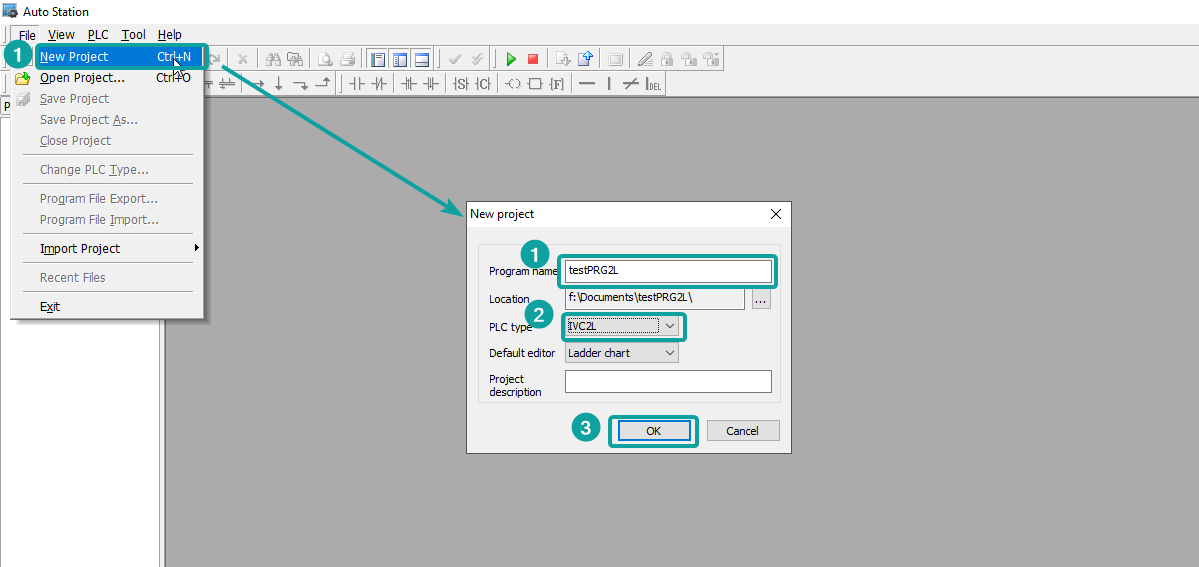
Create new program, and select the PLC type as IVC2L.
Double click the tree node of [System block], and then double click the [Serial Port] to open the PLC port settings setup window. Find the PORT0 setting to change.
Change the PORT0 setting as Modbus protocol, and click OK to save the setting.
Program the PLC
Connect the PLC with PC by RS232-USB converter cable. Setup the connection method from [PLC Communication]-[Connect]. If set up successfully, it would show like below.
Click [PLC]-[Download] to download program into PLC. If not compile the program, when click download, it would ask for recompilation to process the next step.
Click [Download] to finish the job.
Cable Wiring