04 SCADA Design
4.1 Main Interface
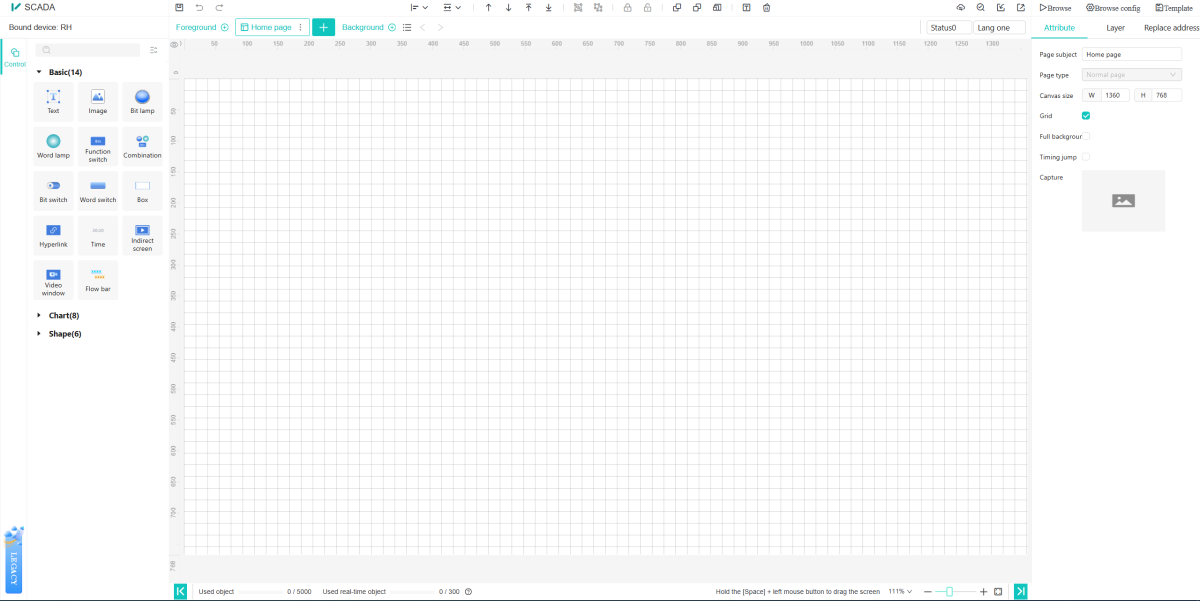
In "Centralized Monitoring" or "Template Management", click the [Edit] or [Design] button to enter the main interface of the V-IEC SCADA editor and design the screen for the template or project, as shown in the figure below.
The functional divisions of V-Net SCADA editor are shown in the figure below.
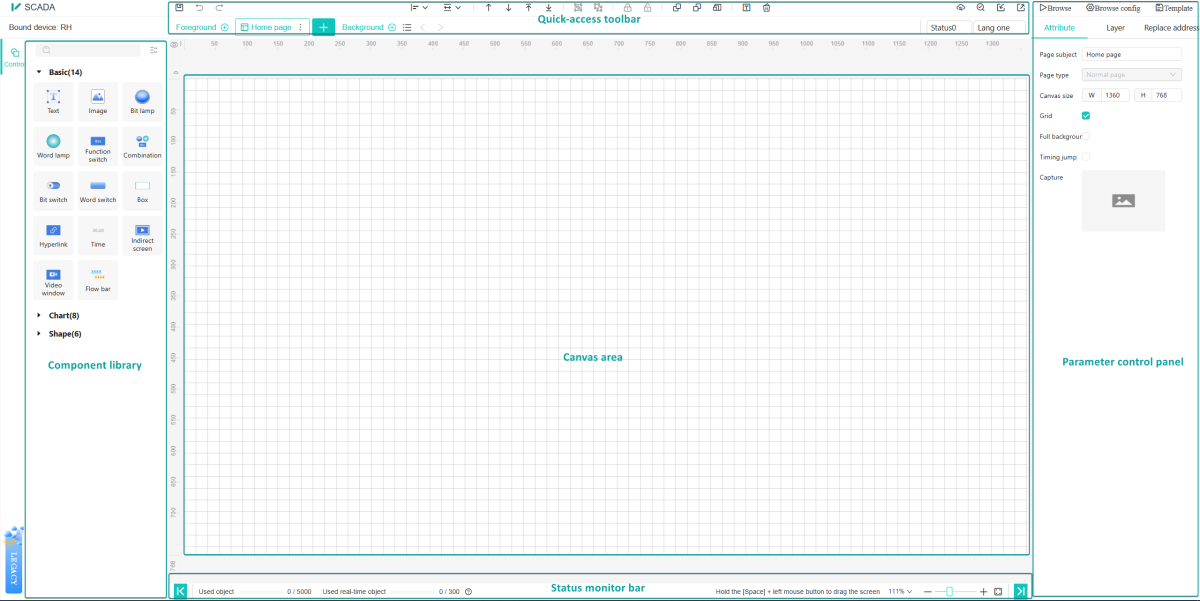
- Component library: Provide different components for SCADA design.
- Canvas Area: A canvas used to design SCADA screens.
- Quick-access toolbar: Batch operations on multiple components, such as alignment, grouping, and multi-copy.
- Parameter control panel: Adjust the properties of pages/components.
- Status monitor bar: Displays component quantity monitoring and zoom ratio control.
4.2 Design Process
SCADA design process:
Step 1: When creating a new SCADA project, a main screen exists by default. Multiple screens can also be created in the page bar, and screen properties can be set.
Step 2: Select the component , switch the page panel to the component panel, click to select the target component, then drag the mouse in the canvas area to draw the component.
Step 3: To design a configuration screen, click a component then edit the component properties in Parameter control panel. (set variables, define styles, etc.).
Step 4: Save the screen.(Click the save button on the toolbar or use the shortcut Ctrl+S.)
4.2.1 Normal page and sub screen
"Project or template" is composed of screens, which can be composed of one or more screens.
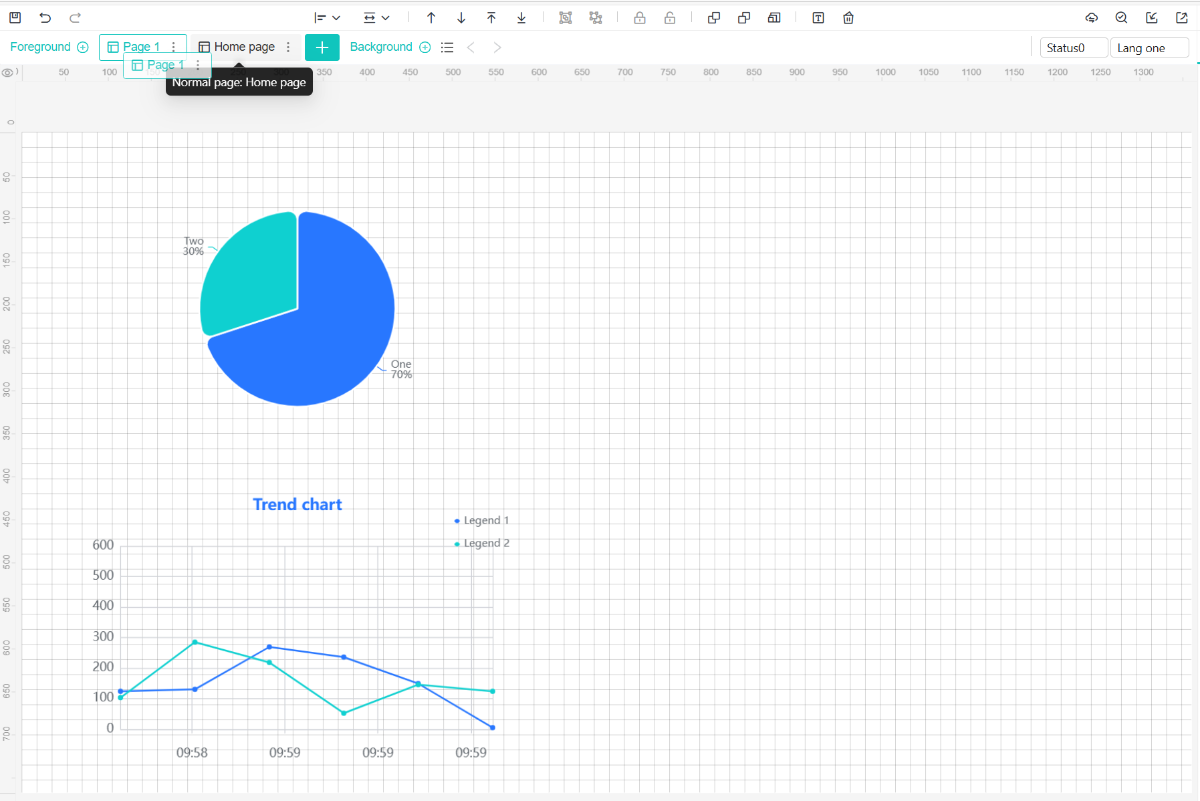
Screen types are divided into: normal page, sub screen. The icons of each type of screen are different, as shown below:
 ※Normal page: will be displayed when browsing projects or templates.
 ※Sub-screen: Embedded in the pop-up box of the normal page, use function switches and other components, click to display the sub-screen.
The names of all screens will be displayed in the form of a "list". When browsing the project, the first normal screen in the screen list is displayed by default, such as the main screen 1 in the figure. Other screens will be switched and displayed through screen jumps or links.
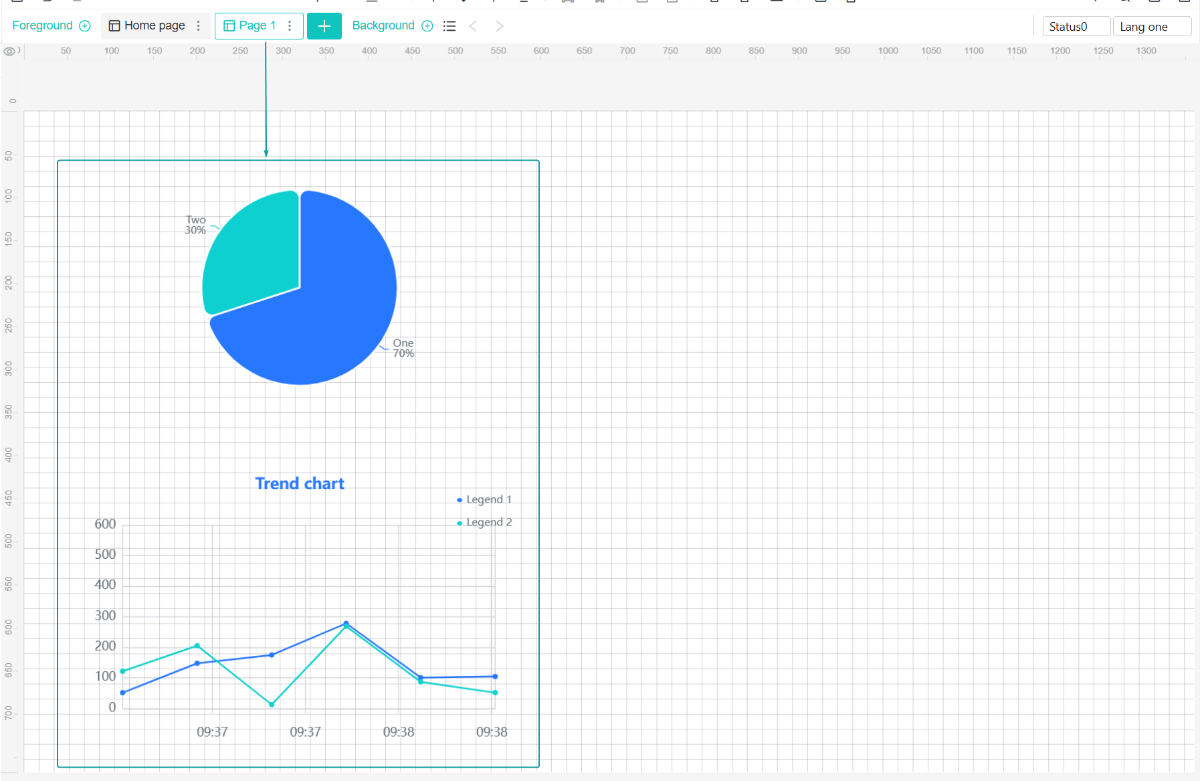
In the screen area of the editor, the SCADA content designed on the screen will be displayed in the canvas area, as shown in the figure below.
4.2.3 Create page
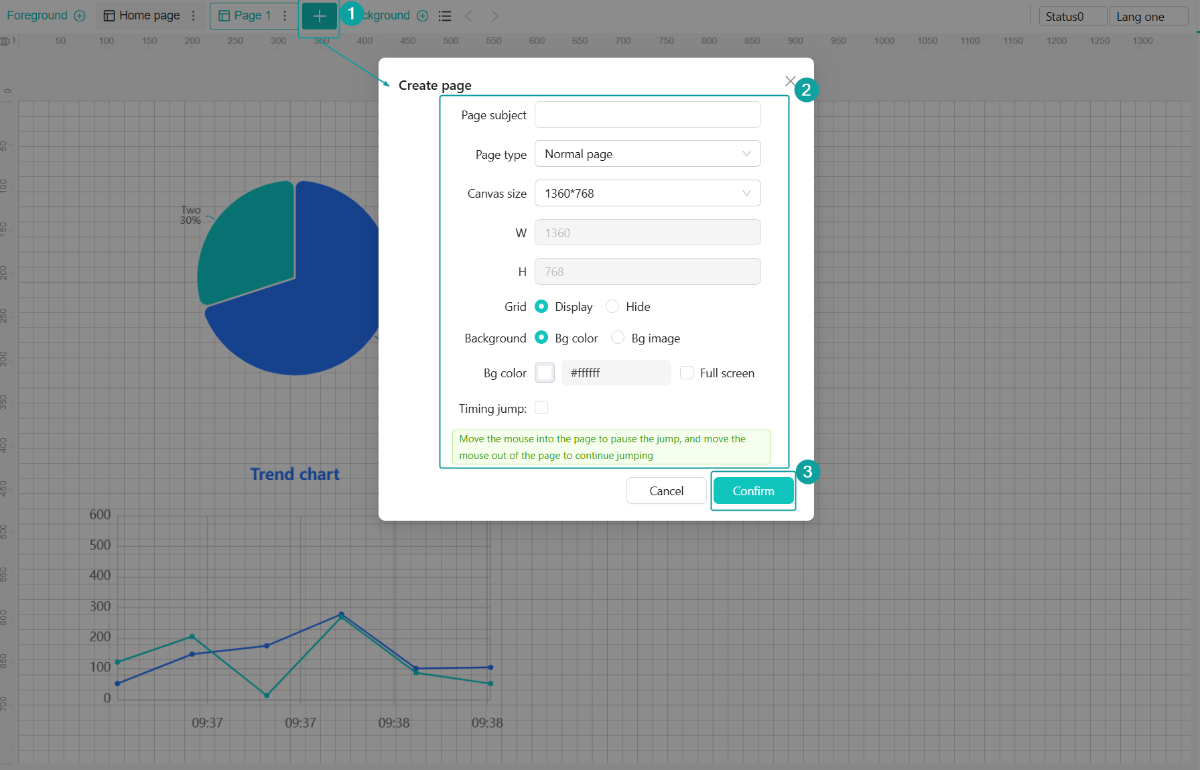
Click the [Create page] button in the screen area to create a new screen. In the pop-up box, fill in the relevant properties of the new screen: "subject, type, canvas size, gird hide/display, background display", etc., and click [Confirm], as shown in the figure below.
4.2.4 Edit page
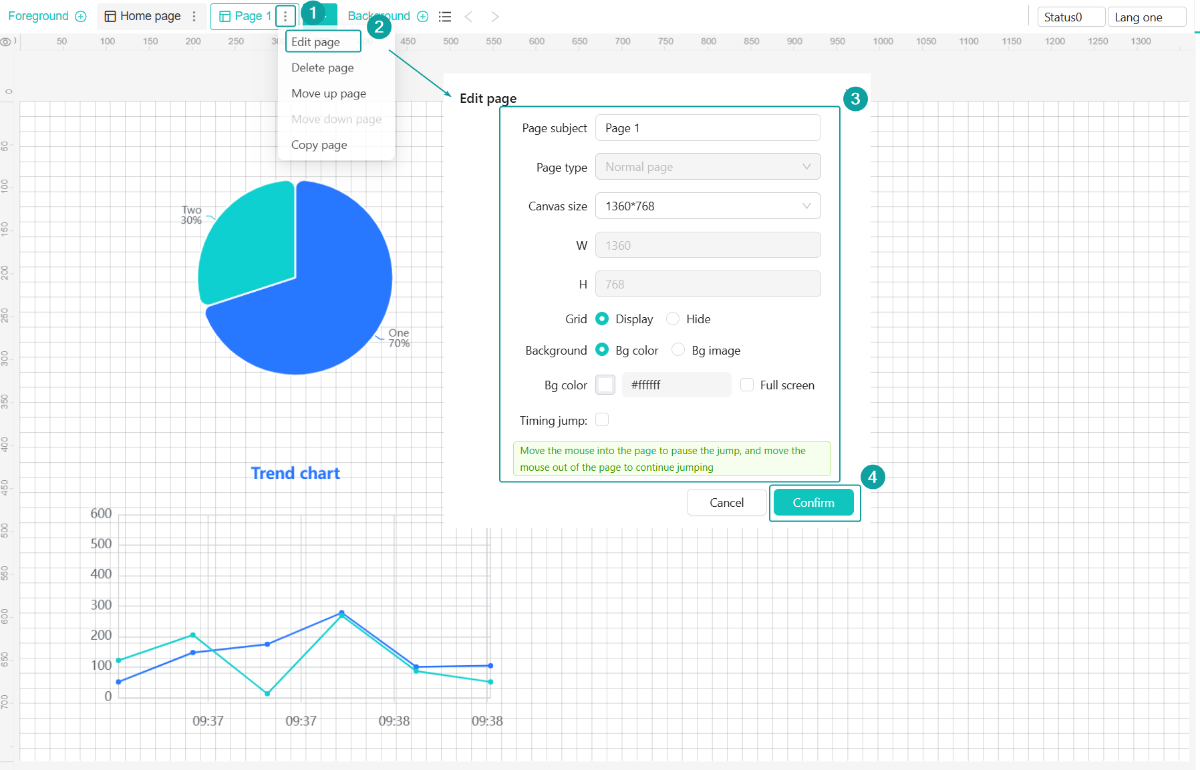
For the screen that needs to be modified, select the [Edit page] option, and modify the properties of the current screen in the pop-up box.
4.2.5 Delete page
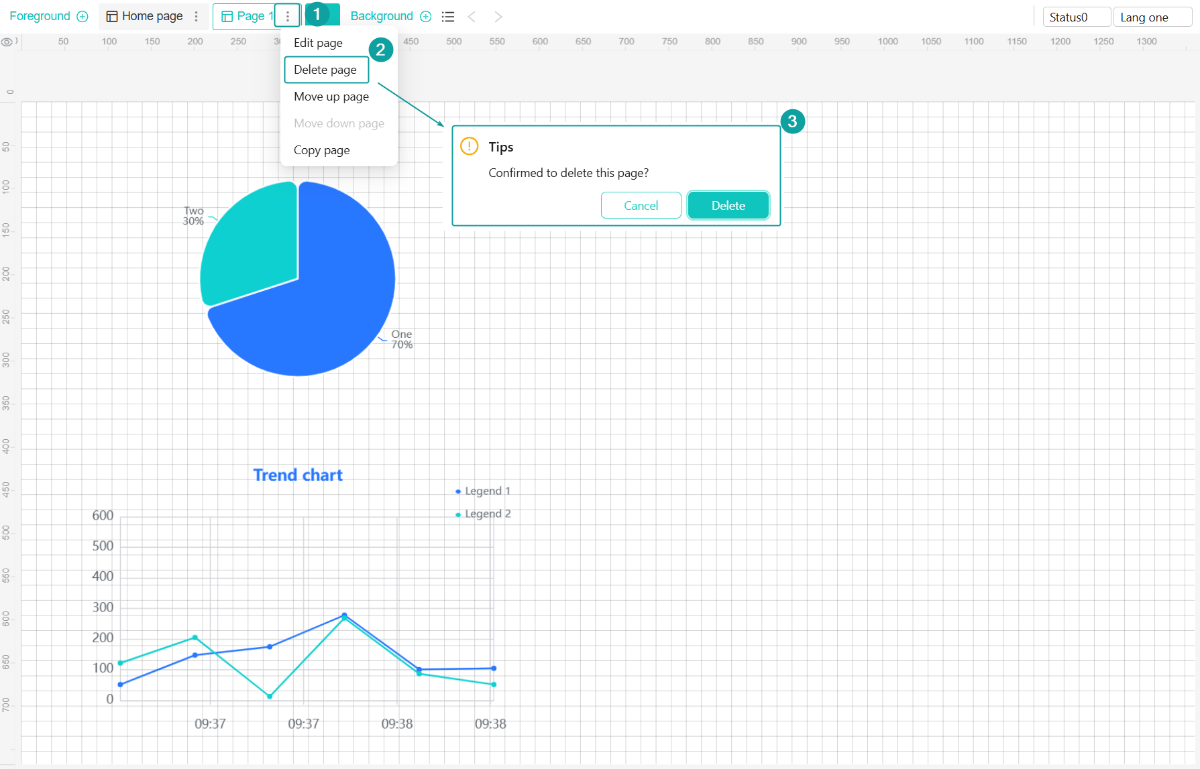
For the screen that needs to be modified, select the [Edit page] option, to delete the selected screen.
4.2.6 Page sorting
Select a "normal screen or sub screen" that needs to be sorted, can drag the screen to the desired position directly.