04 SCADA Design
4.1 Main Interface
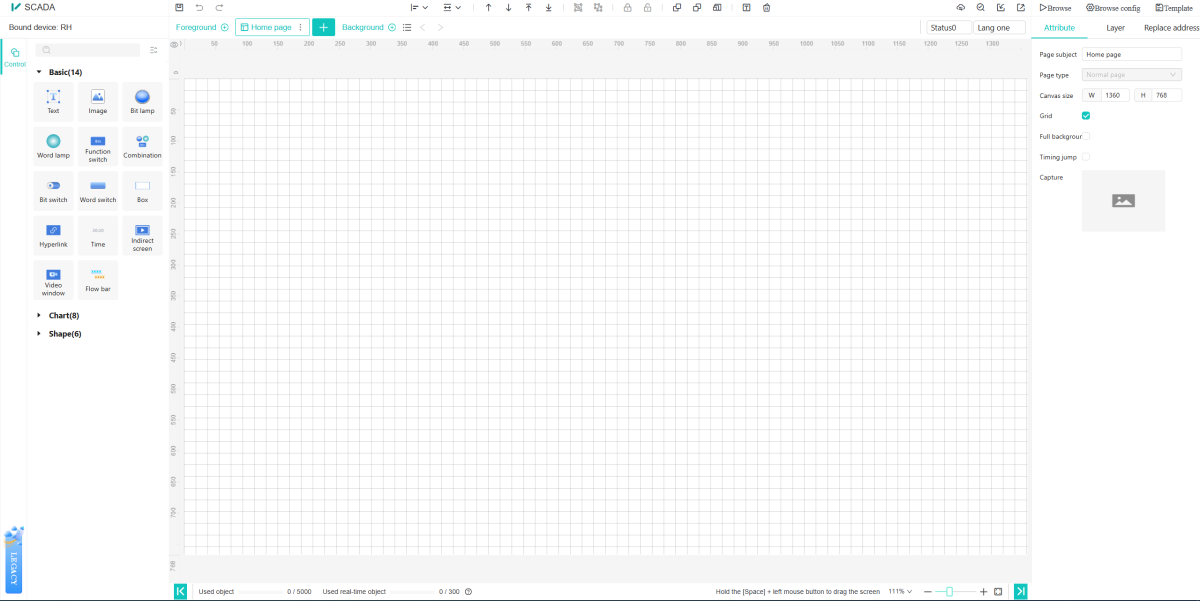
In "Centralized Monitoring" or "Template Management", click the [Edit] or [Design] button to enter the main interface of the V-IEC SCADA editor and design the screen for the template or project, as shown in the figure below.
The functional divisions of V-Net SCADA editor are shown in the figure below.
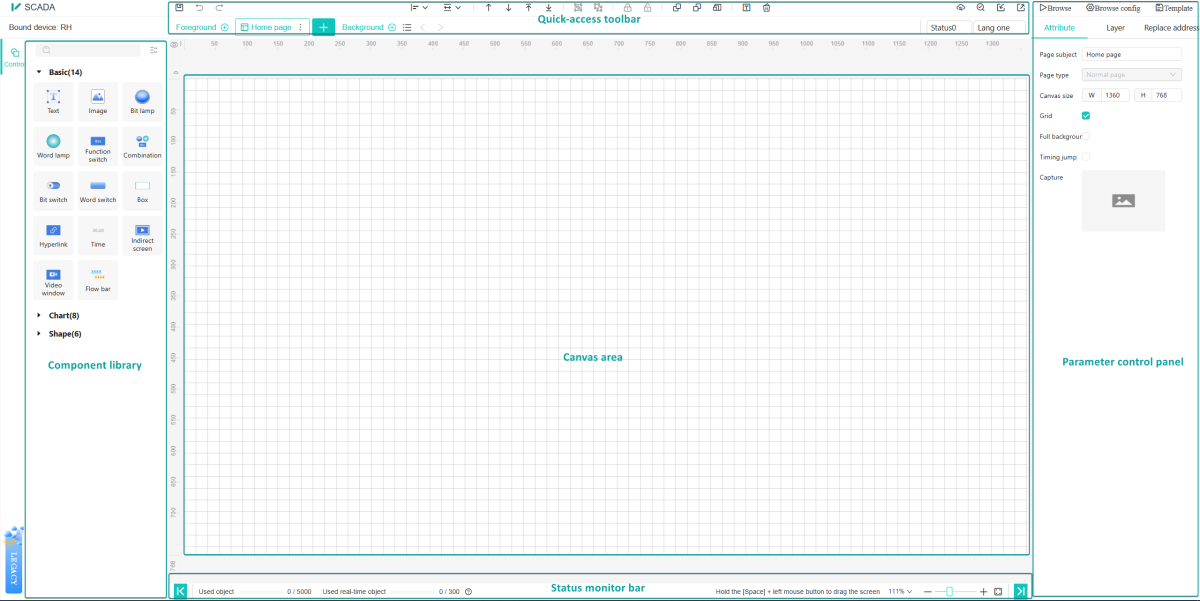
- Component library: Provide different components for SCADA design.
- Canvas Area: A canvas used to design SCADA screens.
- Quick-access toolbar: Batch operations on multiple components, such as alignment, grouping, and multi-copy.
- Parameter control panel: Adjust the properties of pages/components.
- Status monitor bar: Displays component quantity monitoring and zoom ratio control.
4.2 Design Process
SCADA design process:
Step 1: When creating a new SCADA project, a main screen exists by default. Multiple screens can also be created in the page bar, and screen properties can be set.
Step 2: Select the component , switch the page panel to the component panel, click to select the target component, then drag the mouse in the canvas area to draw the component.
Step 3: To design a configuration screen, click a component then edit the component properties in Parameter control panel. (set variables, define styles, etc.).
Step 4: Save the screen.(Click the save button on the toolbar or use the shortcut Ctrl+S.)
4.2.1 Normal page and sub screen
"Project or template" is composed of screens, which can be composed of one or more screens.
Screen types are divided into: normal page, sub screen. The icons of each type of screen are different, as shown below:
 ※Normal page: will be displayed when browsing projects or templates.
 ※Sub-screen: Embedded in the pop-up box of the normal page, use function switches and other components, click to display the sub-screen.
The names of all screens will be displayed in the form of a "list". When browsing the project, the first normal screen in the screen list is displayed by default, such as the main screen 1 in the figure. Other screens will be switched and displayed through screen jumps or links.
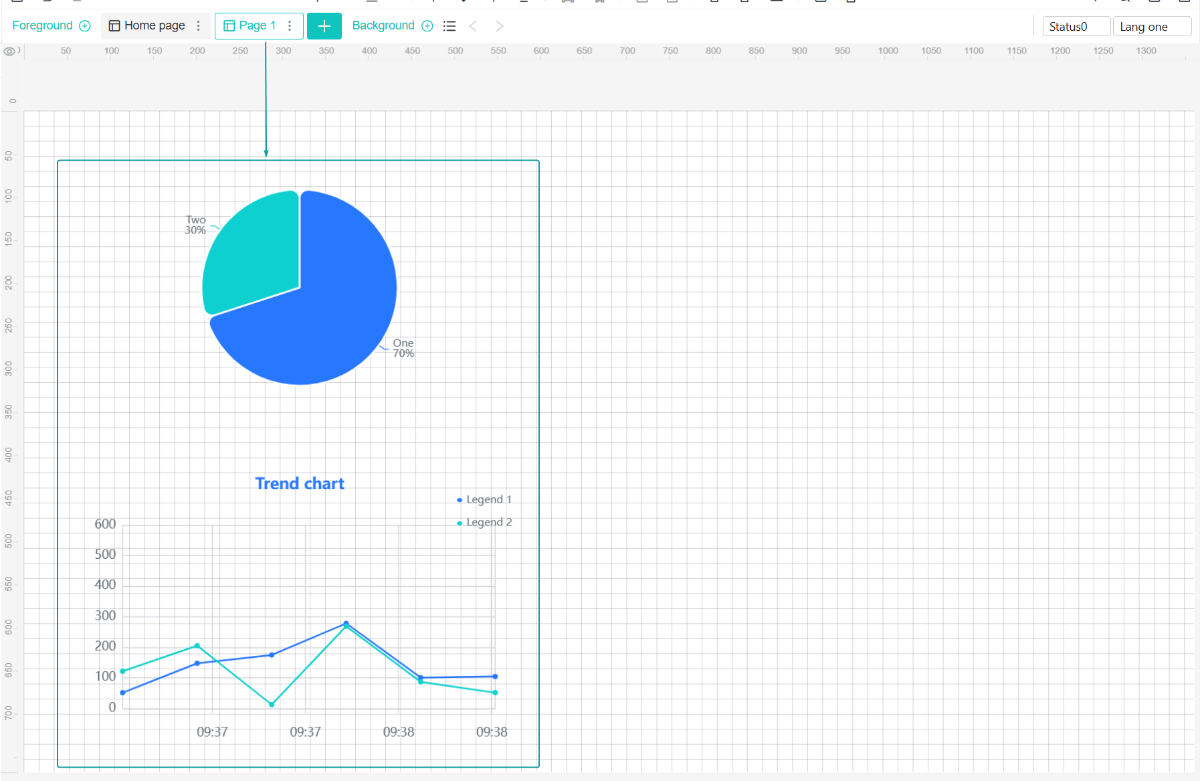
In the screen area of the editor, the SCADA content designed on the screen will be displayed in the canvas area, as shown in the figure below.
4.2.2 Foreground Page and Background Page
With foreground and background pages, you can quickly design the frame of project pages. There is no need to configure identical widgets or set the same background across different pages. This improves configuration reusability and makes project design more convenient.
Foreground pages and background pages are concepts of public pages. Widgets created on foreground and background pages are visible on normal pages. Widgets added on a foreground page are always displayed on top of widgets on normal pages, while widgets from a background page are always rendered underneath normal page content. Meanwhile, background page settings such as background color and images will also be applied to normal pages.
To create a new foreground or background page, see the figure below:

Editing, fusion modes and deletion of foreground pages and background pages, as well as associating/disassociating foreground/background pages from normal pages, are shown in the figure below:

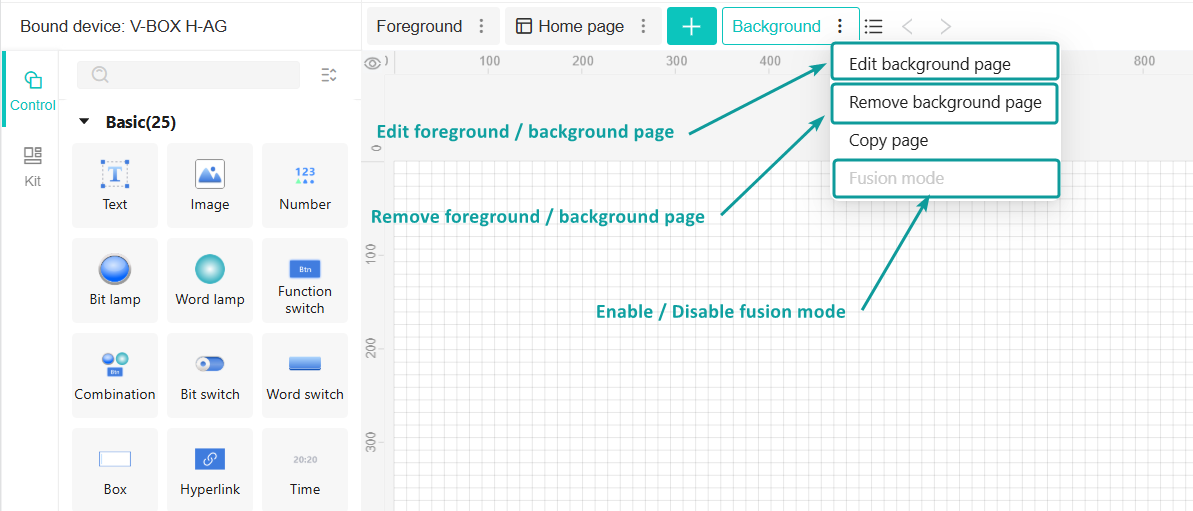
- Edit Foreground / Background Page: The editable items are the same as normal pages. However, foreground pages do not support background-related configurations such as background color and images.
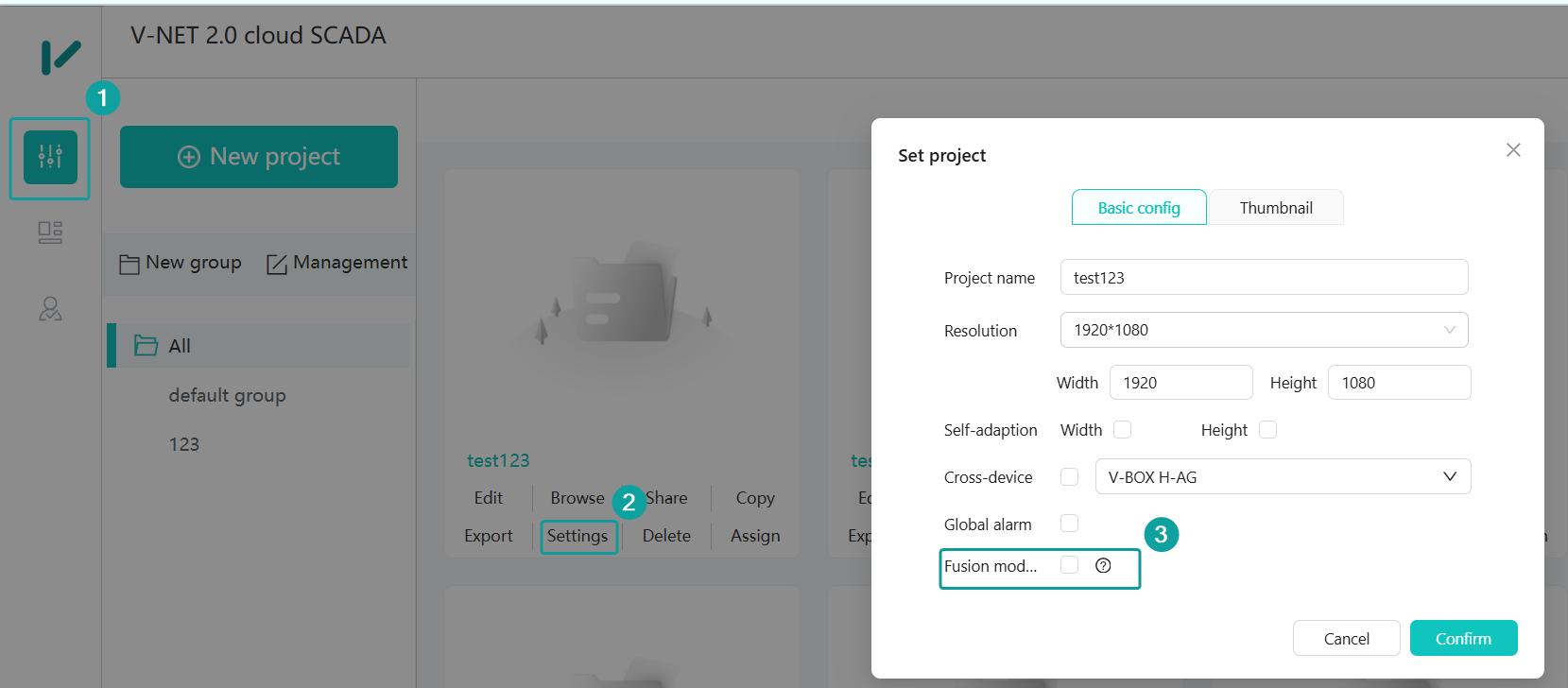
- Fusion Mode / Non-Fusion Mode: After a project is created, foreground and background pages within the project default to Fusion Mode. (Fusion Mode: Widgets from foreground/background pages cannot be edited on normal pages. Non-Fusion Mode allows editing.) This setting cannot be toggled by default. You need to enable the "Fusion Mode" function in the project settings popup window. See the figure below:
- Delete Foreground / Background Page: Delete the foreground or background page and clear all widgets. The Add button will reappear on the foreground/background page operation bar.
- Associate / Disassociate Foreground / Background Page: Normal pages may associate or disassociate foreground or background pages. After disassociation, the affected normal page will no longer display widgets from the foreground or background page. If a background page is disassociated, its background configurations applied to the current page will also be removed.
4.2.3 Create page
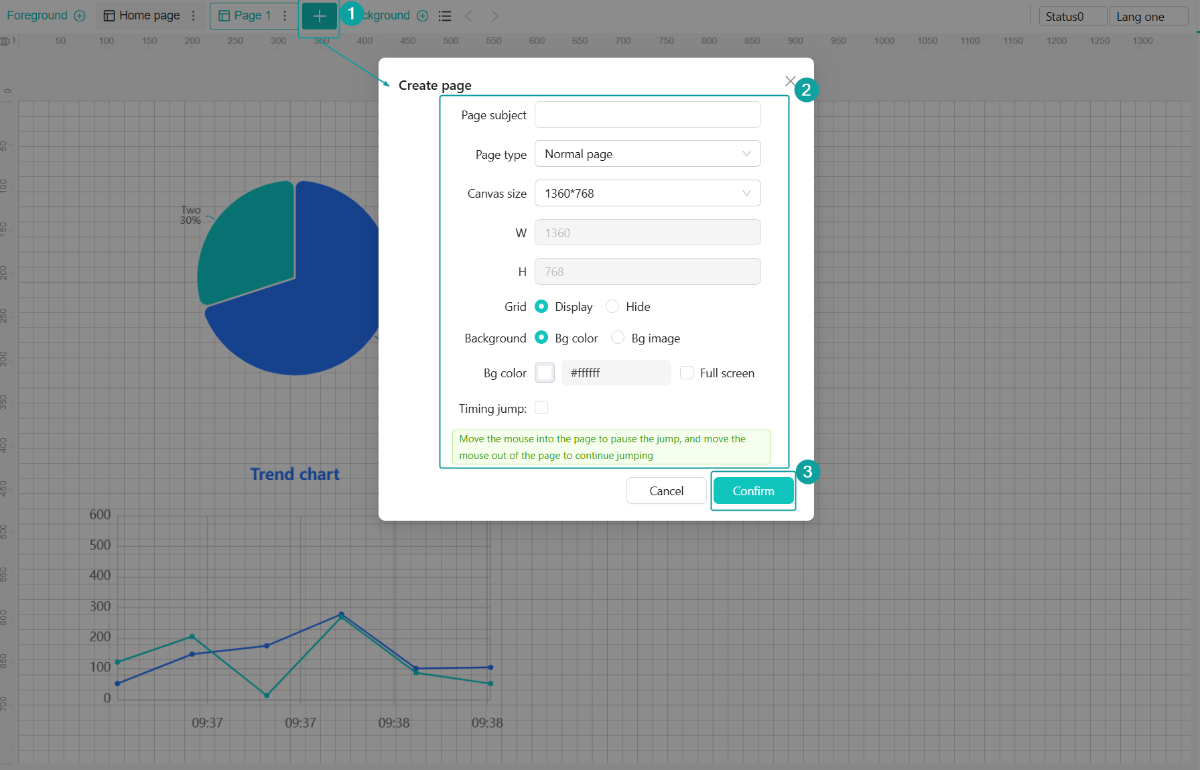
Click the [Create page] button in the screen area to create a new screen. In the pop-up box, fill in the relevant properties of the new screen: "subject, type, canvas size, gird hide/display, background display", etc., and click [Confirm], as shown in the figure below.
4.2.4 Edit page
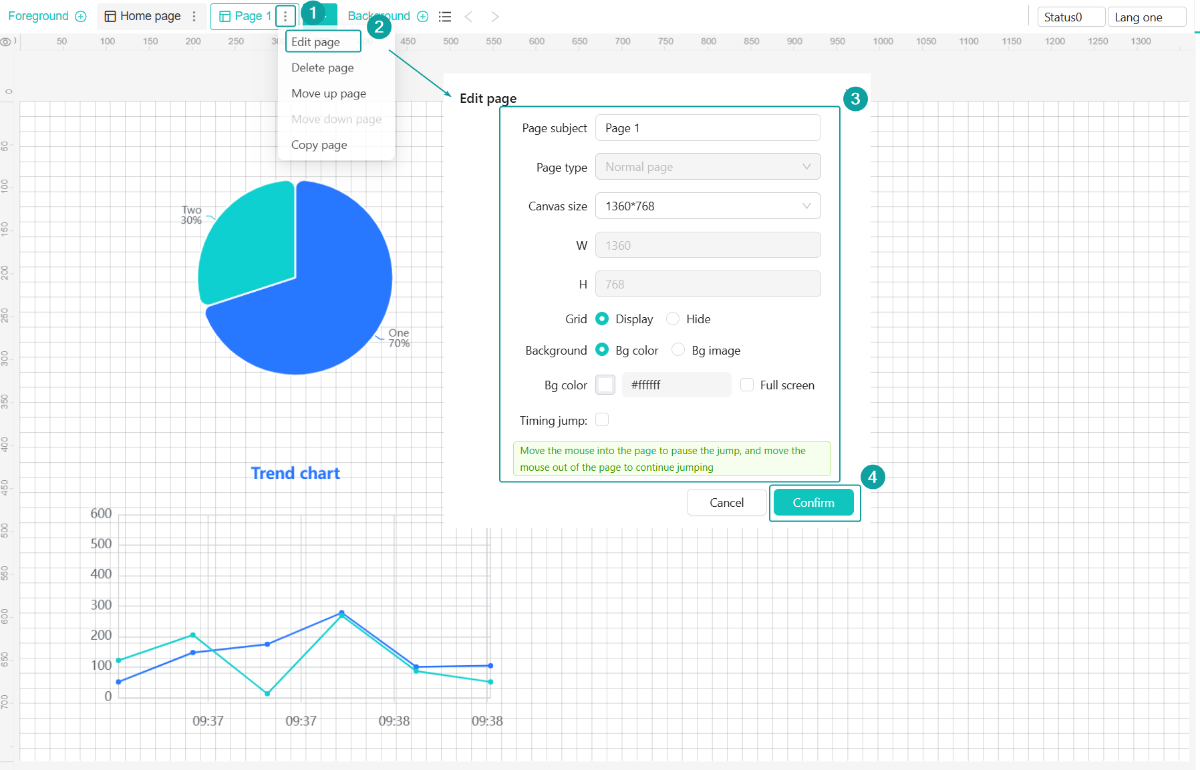
For the screen that needs to be modified, select the [Edit page] option, and modify the properties of the current screen in the pop-up box.
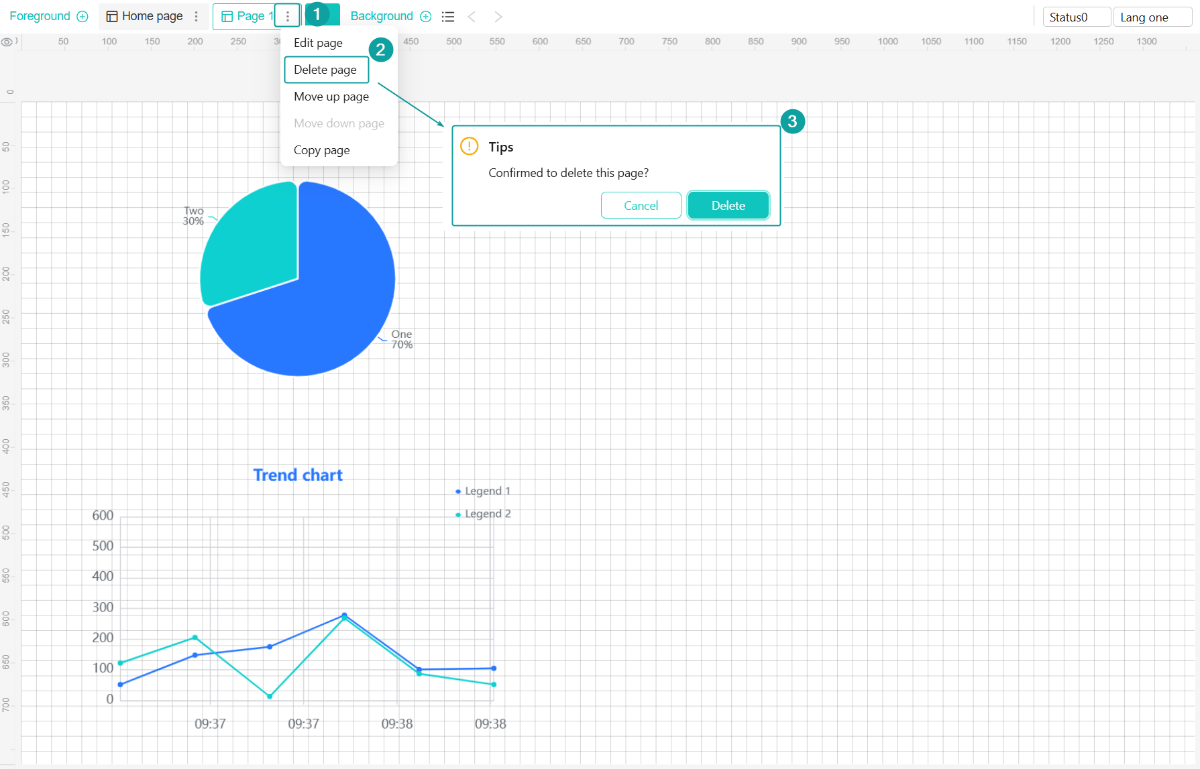
4.2.5 Delete page
For the screen that needs to be modified, select the [Edit page] option, to delete the selected screen.
4.2.6 Page sorting
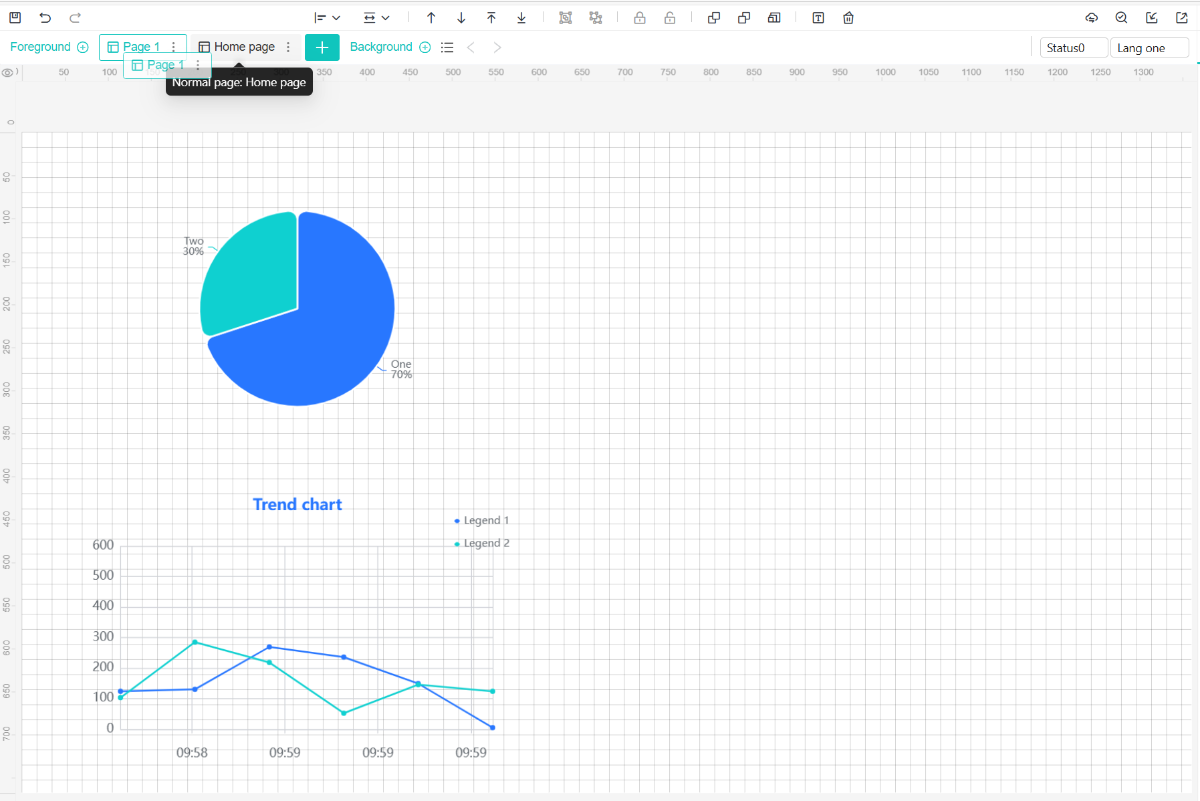
Select a "normal screen or sub screen" that needs to be sorted, can drag the screen to the desired position directly.